Firmware update
Operating summary
Device management
The management subsystem allows remote management of Zephyr-enabled devices. The following management operations are available:
Image management
File System management
Log management (currently disabled)
OS management
Shell management
over the following transports:
BLE (Bluetooth Low Energy)
Serial (UART)
The management subsystem is based on the Simple Management Protocol (SMP) provided by MCUmgr.
Simple Management Protocol (SMP)
SMP is a communication protocol that allows network administrators to manage network equipment, monitor and diagnose network and hardware problems remotely. In the case of products under Zephyr an SMP request is sent in the form:
a GATT write command
from a write command without a GATT response -> an SMP response is sent in the form of a GATT notification specifying the same characteristic as the one that was written.
Image slots
A portion of the flash memory can be partitioned into multiple image areas, each contains two image slots: a primary slot and a secondary slot. The boot loader will run an image from the primary slot. If the boot loader needs to run the image resident in the secondary slot, it must copy its contents into the primary slot before doing so, either by swapping the two images or by overwriting the contents of the primary slot.
Device Firmware Update (DFU)
The Device Firmware Upgrade subsystem provides the necessary frameworks to upgrade the image of a Zephyr-based application at run time. It currently consists of two different modules:
subsys/dfu/boot/: Interface code to bootloaders
subsys/dfu/img_util/: Image management code
Device upgrade : Tutorial
To upgrade a device we use the standard DFU method, it is done though BLE by an App or a DFU controller with a specific GATT service. This is the current method for all firmwares version < 3.9.0. https://infocenter.nordicsemi.com/index.jsp?topic=%2Fsdk_nrf5_v16.0.0%2Flib_bootloader_dfu_process.html&cp=7_1_3_5_1
To update a device by DFU you must have a .signed.bin file for this product.
We can see 2 firmware versions in the phone
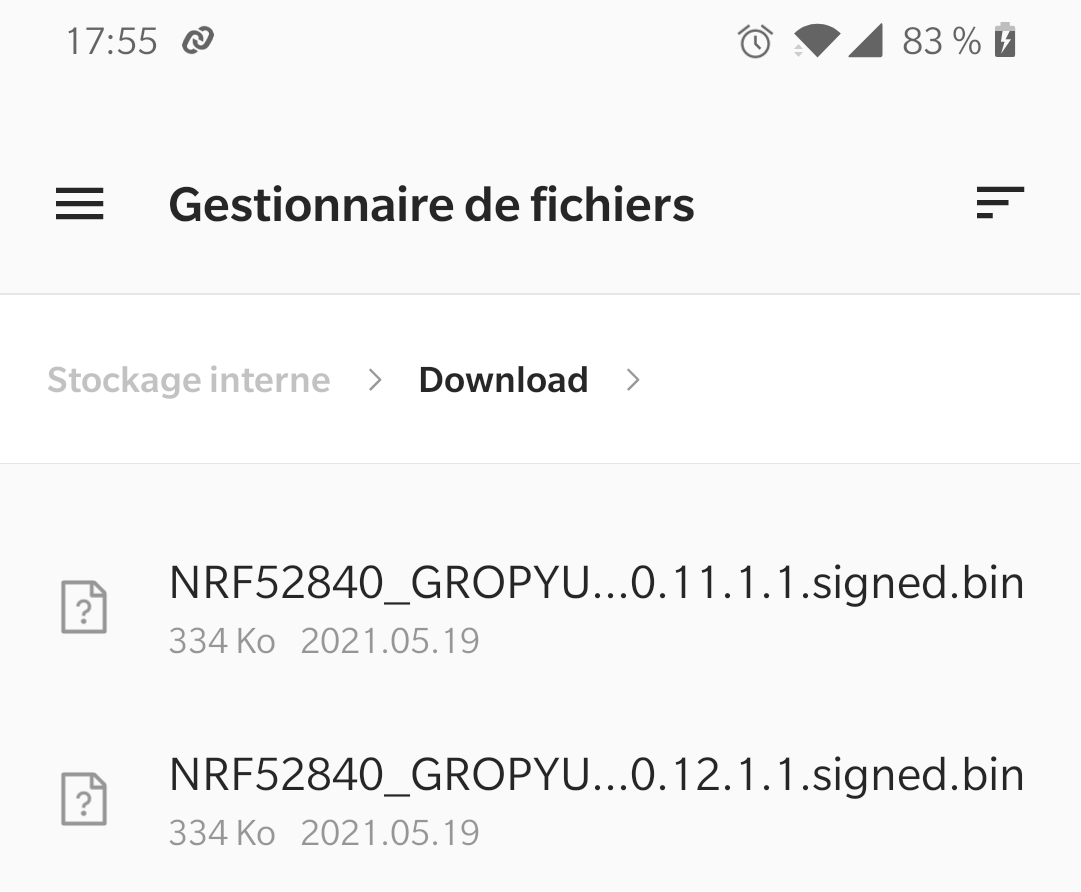
Versions sinp1
The product is flashed in version 11.1.1.
To start opening nRF Connect, log in to the product.
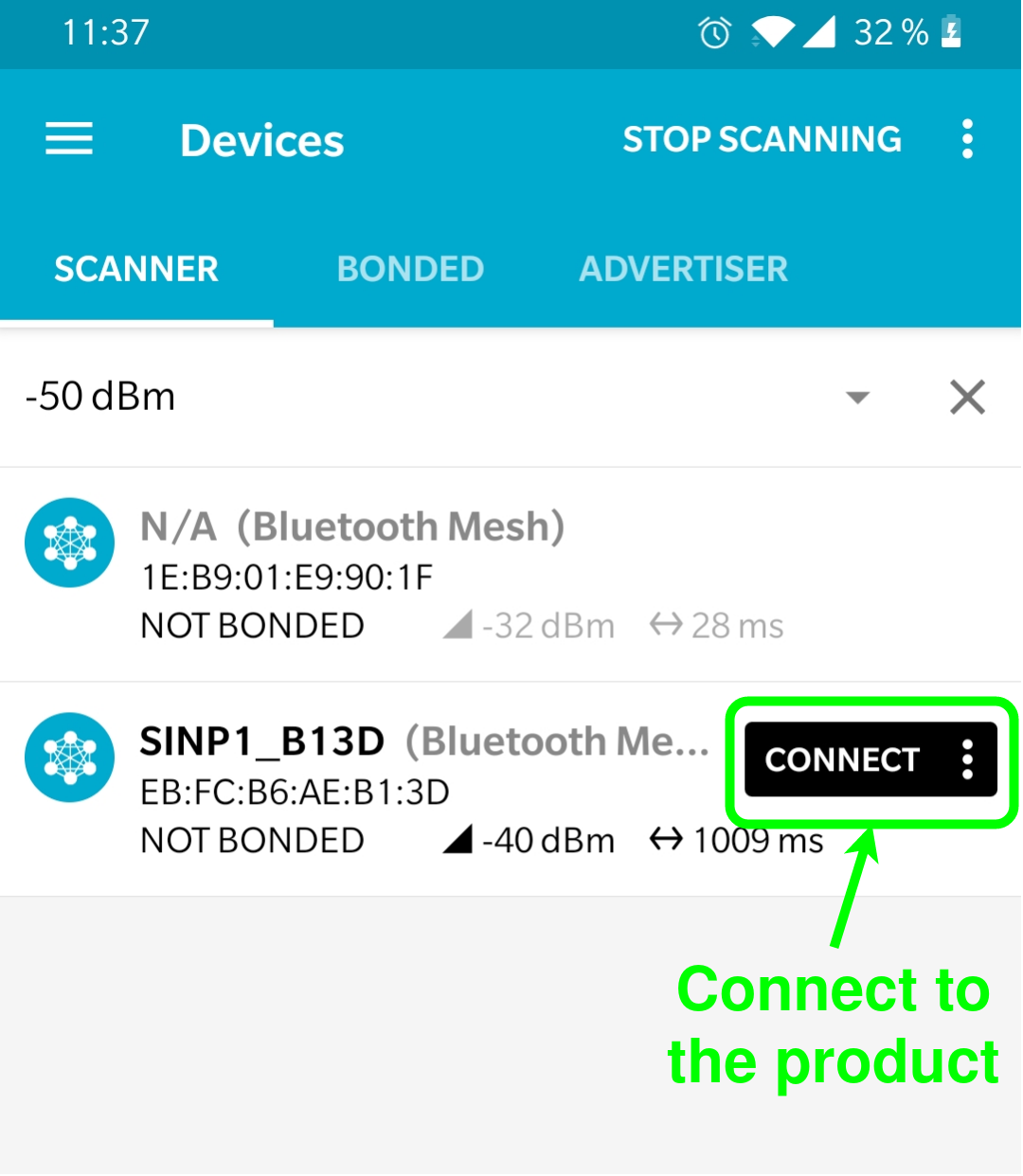
Connect to the product
Go to the product page click on the DFU icon.
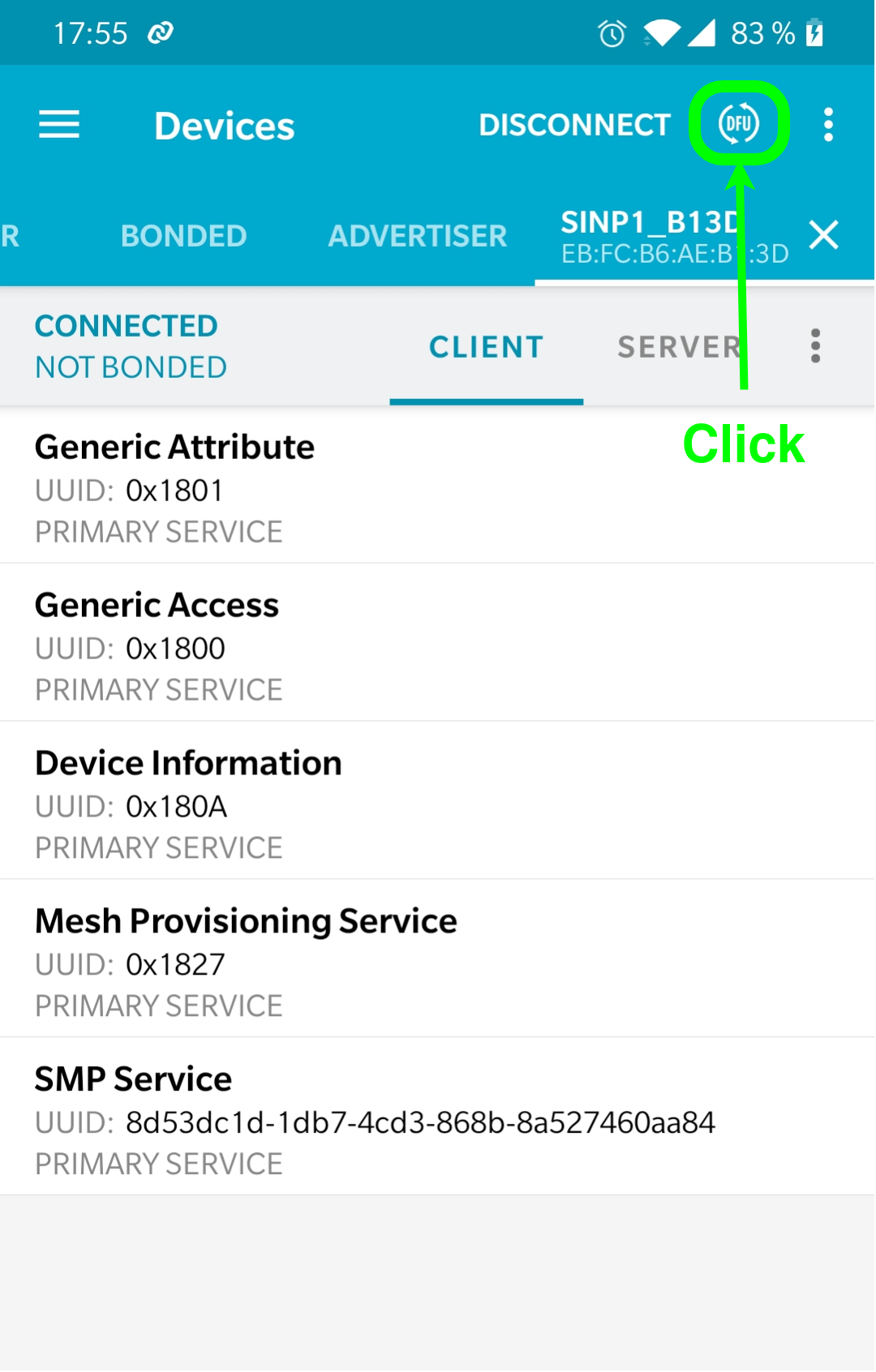
Click DFU icon
Select on the file with the new firmware version that you want (here 12.1.1).
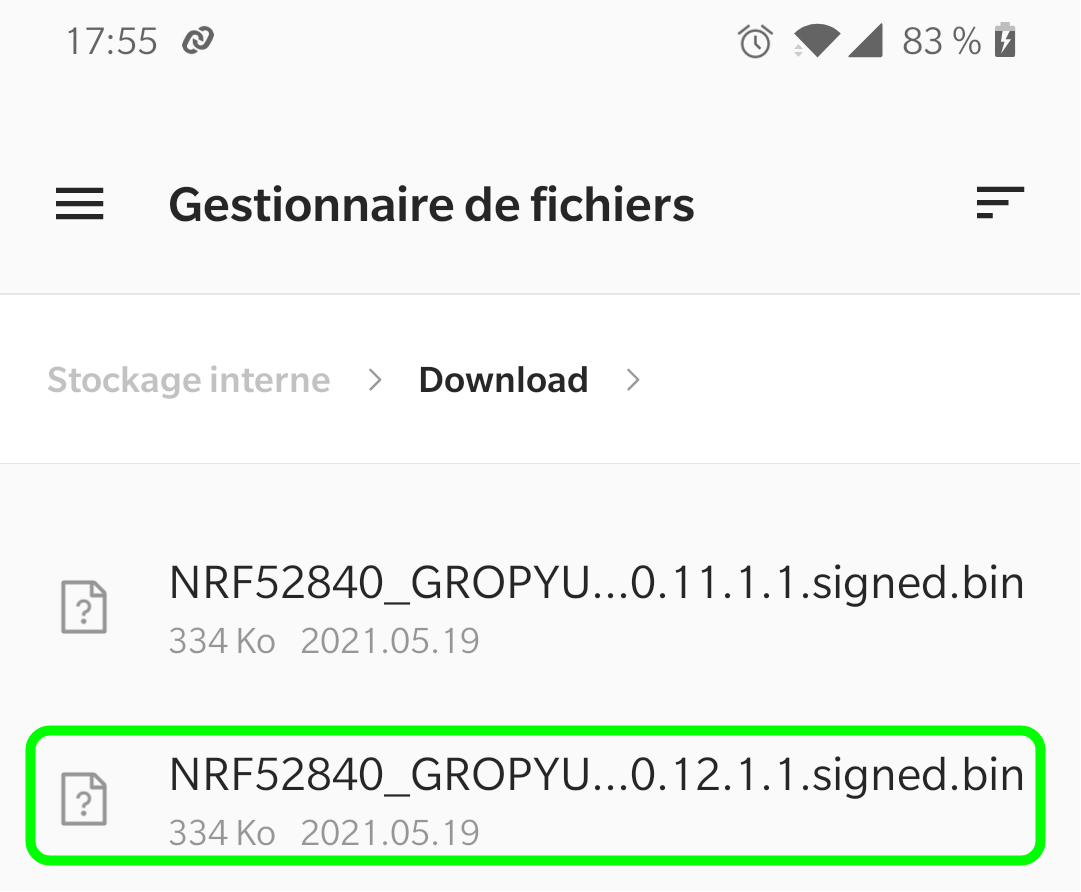
Select file
Select “Confirm only” (seems to have problems with test and confirm option).
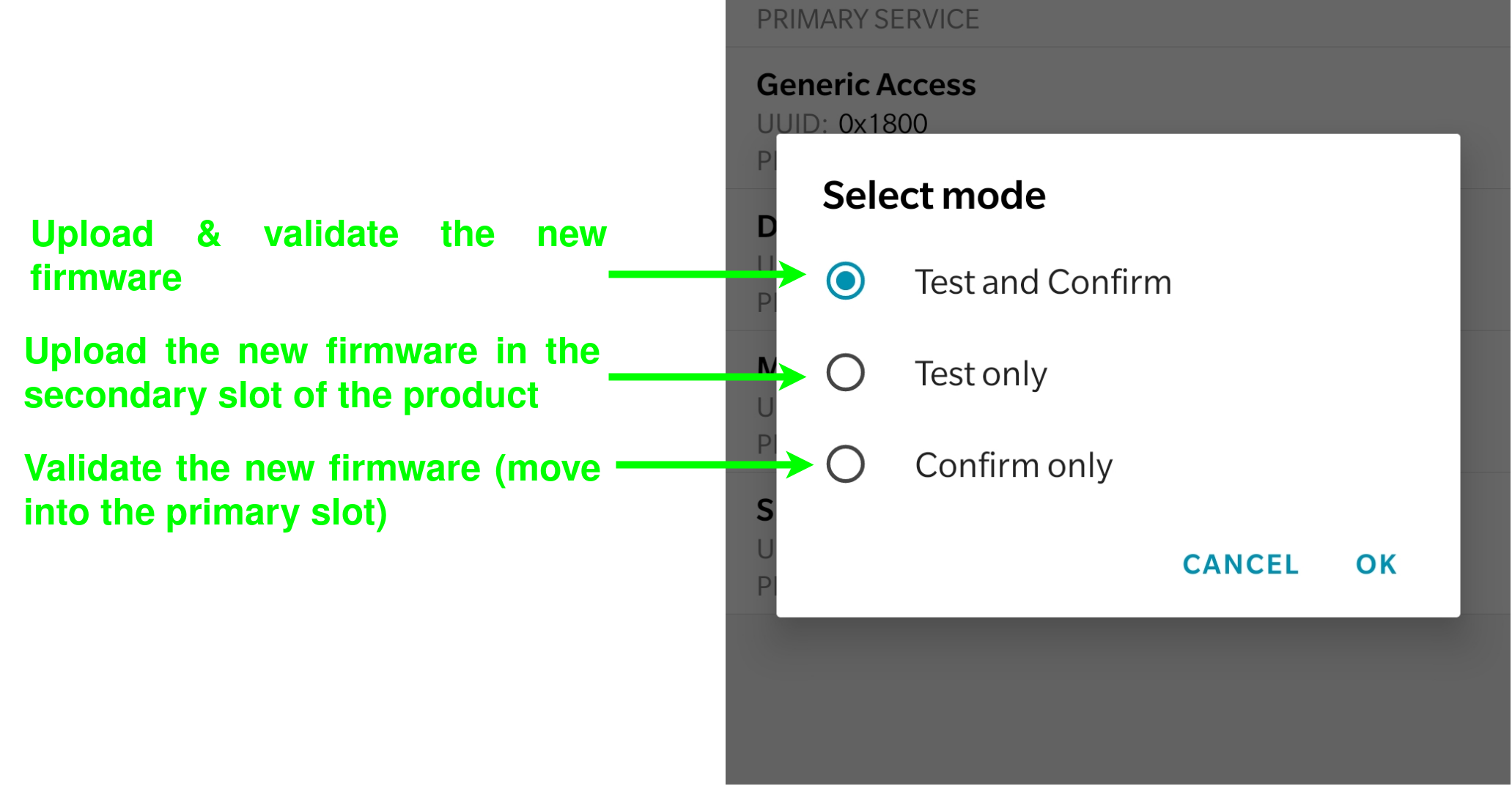
Modes update
If the new firmware is not present in the secondary or primary slot, it will register in the secondary slot and then the 2 FWs will be interchanged. It may take 2/3 min to download the image.
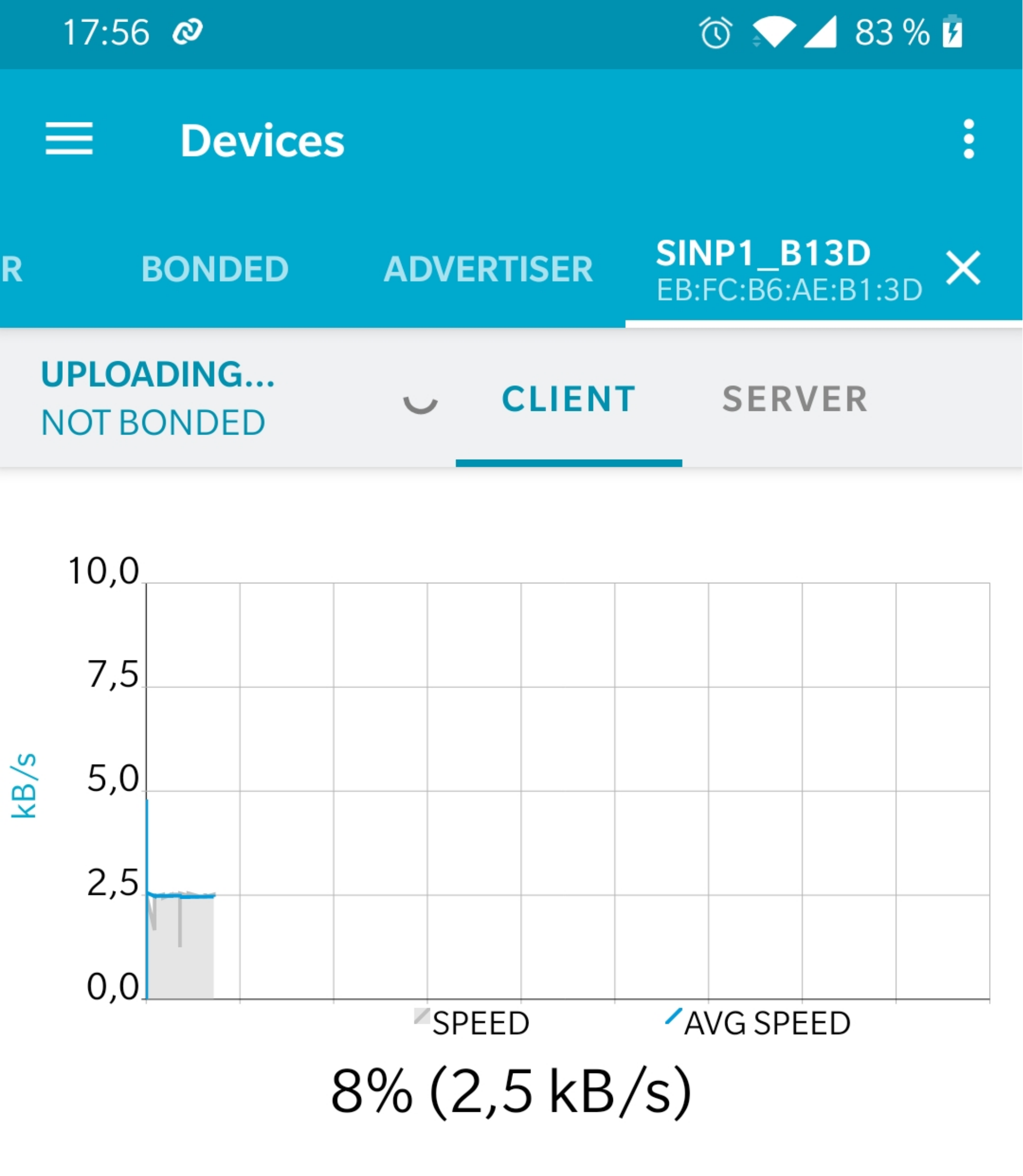
Upload image
If all the steps have gone well, the product will reboot with FW 12.1.1.